How to Find Out What Theme a Shopify Store Uses (and Which Apps)
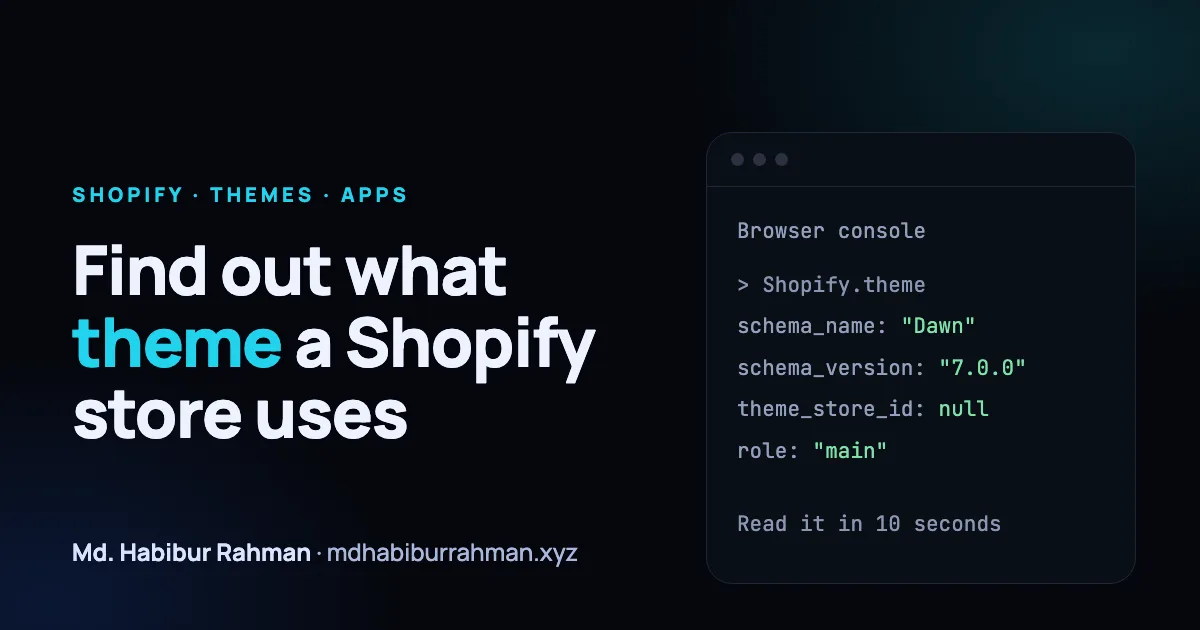
Most Shopify storefronts tell the browser which theme they run, and you can usually read it in under a minute. Apps are harder: some leave a clear trace, many leave none.
People ask which theme a store uses for different reasons. A merchant likes a competitor's layout. A developer takes over a store and wants to know what is underneath. A designer wants to know whether a "custom" site is really a free theme with a new logo. The question is the same each time, and the method is too.
This guide shows three ways to find a Shopify store's theme, how to read the result without being misled, how to look for the apps a store runs, and what no tool can tell you from the outside.
What you can and cannot find out
| You can usually see | You usually cannot see |
|---|---|
| The theme's name and version | What the store owner paid for the theme |
| Whether it was installed from the Shopify Theme Store | The store's private settings and section content |
| Apps that add code to the storefront | Apps that only work in the Shopify admin |
| Whether the store has been customized heavily | Checkout customizations, Shopify Functions and backend integrations |
Keep that second column in mind. A detector that "finds no apps" has not proved the store runs none.
Method 1: Use a free detector
The quickest way is a detector that does the reading for you. Paste the store address into the free theme and app detector and it lists the theme, its base theme and version, and the apps that add code to the page, each with the evidence it was found from.
Showing the evidence matters. You can check a result yourself instead of trusting a label, and the next two methods show you how.
Method 2: Read it from the browser console
This works on most Shopify storefronts that use a theme and needs no extension.
- Open the store's home page in Chrome, Edge or Firefox.
- Open the developer tools: right-click the page, choose Inspect, and open the Console tab.
- Type the following and press Enter:
Shopify.theme
The console prints an object. This is what one well-known store published when I checked on 28 October 2026:
{
  name: "Site Ops Release: Post F&F BAU",
  id: 189208690778,
  schema_name: "Dawn",
  schema_version: "7.0.0",
  theme_store_id: null,
  role: "main"
}
That is Brooklinen's storefront, and it shows why the fields need careful reading: the name is an internal release label, while schema_name shows the store runs Dawn. A store can change its theme at any time, so the values you see will differ.
The object is part of the page's own source, so anyone can read it.
How to read each field
| Field | What it means |
|---|---|
name |
The name the store owner gave this copy of the theme. It is often misleading: "Copy of Dawn", "Live April" or "Main theme v2". |
schema_name |
The theme's own name, set by whoever made it. This is the field to trust for "which theme is this?". |
schema_version |
The version of that theme. A very old version suggests the store has not updated its theme in a long time. |
theme_store_id |
A number for a Shopify-made theme installed from the Shopify Theme Store; null otherwise (Shopify's docs: if the theme isn't made by Shopify, or wasn't installed from the Theme Store). |
role |
main for the published theme. |
id |
The identifier of this copy of the theme. |
Three fields, three different questions
"Site Ops Release: Post F&F BAU"What the owner called this copy. It is a label, not the theme."Dawn"What the theme is, set by whoever made it. Trust this one.nullWhere it was installed from. A number means a Shopify-made theme from the Theme Store; null does not mean custom-built.Values from Brooklinen's storefront, 28 October 2026.
Two readings that people get wrong:
- A custom name does not mean a custom theme. If
nameis "Habibur Studio Theme" butschema_nameis "Dawn", the store runs a renamed copy of Dawn, possibly with changes. theme_store_id: nulldoes not mean "custom-built". The Brooklinen example above runs Dawn and still showsnull. Shopify's documentation says the field isnullif the theme is not made by Shopify or was not installed from the Theme Store, so it also covers a copy that was uploaded, built from the theme's source code or bought elsewhere. The field alone cannot tell you which, and it says nothing about who wrote the code. A store whoseschema_nameis something likeallbirds-theme(Allbirds, same date) is a theme named for the brand itself.
If the console says Shopify is not defined, the site is probably not on Shopify, or it is a headless storefront that does not include the theme's scripts. A store built with a custom front end can run on Shopify and still show no theme at all. Not every large store exposes it either: several of the ones I tried printed nothing.
Method 3: Read the page source
If you prefer to see the raw evidence:
- Open the store and press
Ctrl+U(Windows and Linux) orCmd+Option+U(Mac) to view the page source. - Search the page (
Ctrl+F) forShopify.theme. - You will find the same object as above, inside a script tag in the page's head.
While you are in the source, look at the stylesheet and script file names too. Dawn, Shopify's free reference theme, names many of its files component-*.css (for example one per feature, such as the cart). That is a hint, not proof: a store with those file names and a different schema_name may be built on Dawn's code.
Finding the apps a store uses
Apps are harder than themes because there is no single list. You infer them from the code they add. There are two places to look.
View source or the Network tab. Open the developer tools, go to Network, reload the page, and filter by JS. Look at where each script comes from:
- Scripts from
cdn.shopify.com/extensions/...usually belong to apps that use theme app extensions, the mechanism apps use to add app embeds and app blocks to a theme. Shopify's documentation says these extensions' assets are hosted on its CDN, and I saw this path on a large store's page when testing. The path usually contains the extension's name, which points to the app. - Scripts from an app's own domain, such as a reviews or chat service, are loaded by that app's code on the storefront.
- Scripts from analytics, advertising and pixel domains tell you about tracking tools, not Shopify apps.
Look at what the page shows. A review widget, a pop-up, a size chart, a subscription selector and a live-chat bubble are each almost certainly an app, even before you open the code.
What this method cannot find
- Admin-only apps such as inventory, accounting and order tools leave nothing on the storefront.
- Checkout and Functions apps do not add code to the theme's storefront pages: Functions run in Shopify's backend and checkout extensions run in Shopify's sandboxed checkout, so the storefront's page source does not show them.
- Leftovers. An app that was uninstalled can leave its code in the theme, so a detector may report an app the store no longer pays for.
So treat any list of apps as "apps with a storefront footprint", not "all apps".
A theme is not a design
Two stores on the same free theme can look nothing alike. Sections, colours, fonts, images and custom code change the result, and a developer can restructure a theme heavily. Finding out that a store runs Dawn tells you about its foundation, not about what it would cost to reproduce the store.
It also matters what you do with the answer:
- If you like a store's layout, check the theme's demo in the Shopify Theme Store before buying.
- Do not copy a paid theme's code without permission. Buy the theme, or hire someone to build something original that does the same job.
- If you take over a store, the theme name and version are a good first note for your audit, along with the list of apps. Compare them with what the owner tells you.
A short checklist
- Does
Shopify.themeexist on the page, or is the storefront headless? - What do
schema_nameandschema_versionsay, and doesnamehide them? - Is
theme_store_ida number ornull? - Which scripts on the page come from apps, and which come from analytics or ads?
- Which apps could be running that the storefront would never show?
Common questions
Does a detector change the store? No. It only loads a public page, like a browser does, and reads what the page sends. It does not log in or touch the store's settings.
Why does a detector list an app that the store does not seem to use? Most often because an old script from an uninstalled app is still in the theme.
Can I tell how much the store sells or how it is configured? No. Neither the theme's public data nor its apps reveal sales, settings or private content.
Sources
- Shopify, Themes overview in the developer documentation.
- Shopify, Theme Store, where store-installed themes come from.
- Shopify Help Center, Themes.
- Shopify, Theme app extensions, which explains app embeds and app blocks.