Full-page capture
Grab an entire scrolling page in one shot — stitched together automatically, top to bottom.
Capture a full page, the visible screen, or any area you drag. Crop, annotate, and export to PNG, JPG, WebP, or PDF — all in your browser. No account, no uploads, no tracking.
A focused toolkit - no bloat, no clutter. Just fast, private screenshots.
Grab an entire scrolling page in one shot — stitched together automatically, top to bottom.
Snap exactly what's on screen right now. Fast, pixel-perfect, one keypress away.
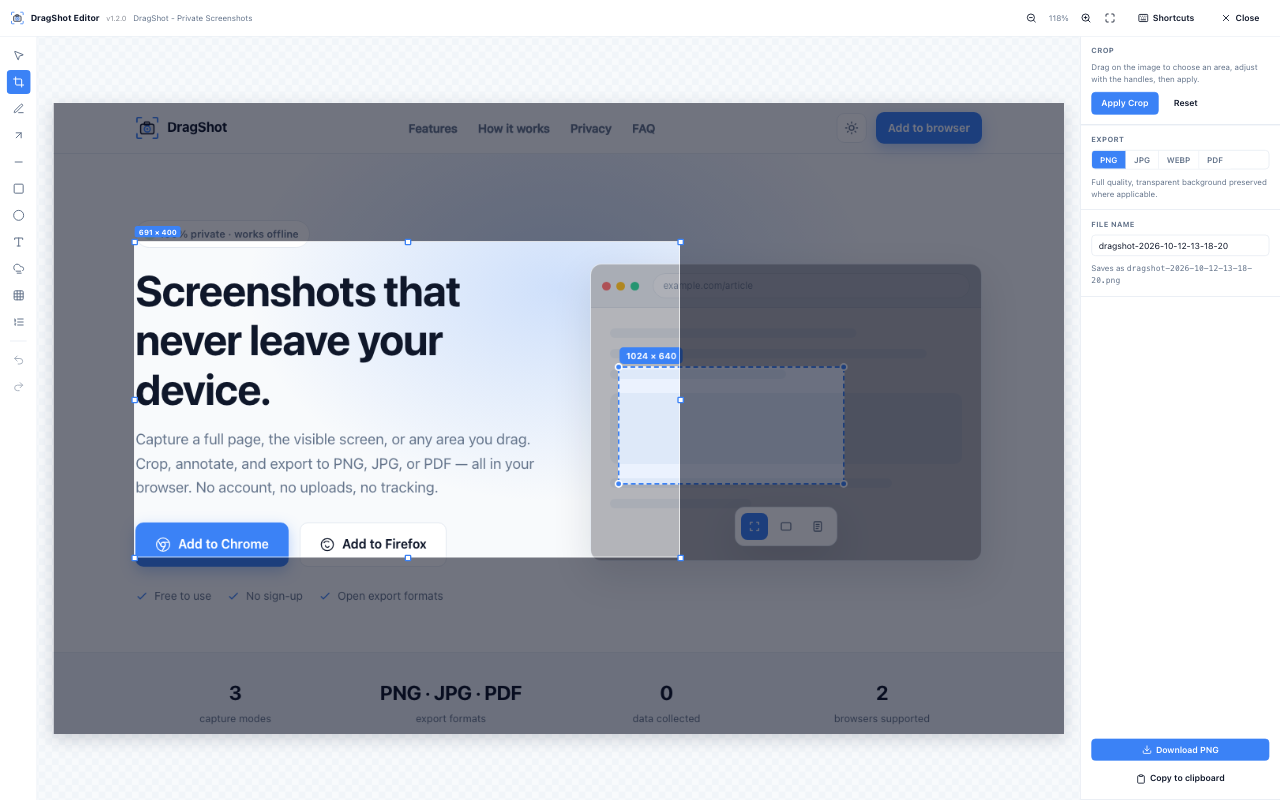
Drag a box around exactly what matters. Snap to the region you want, nothing more.
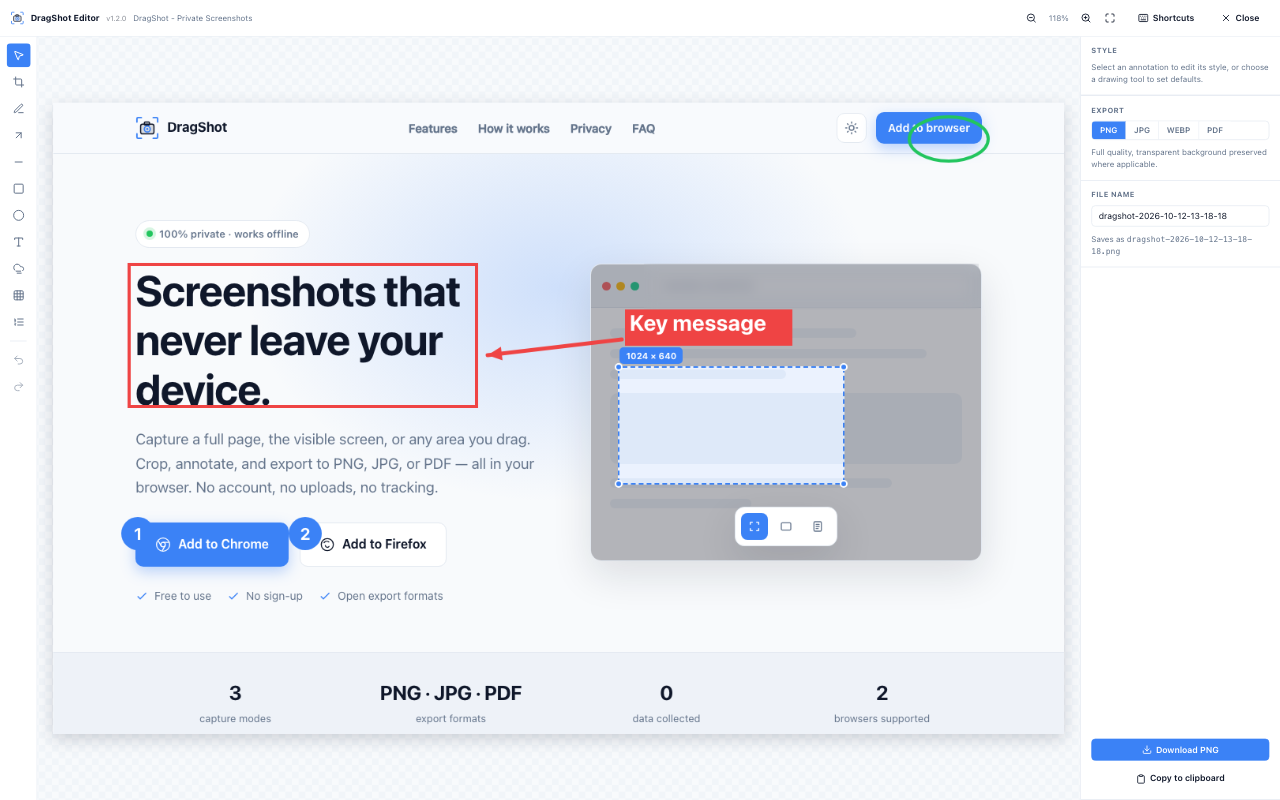
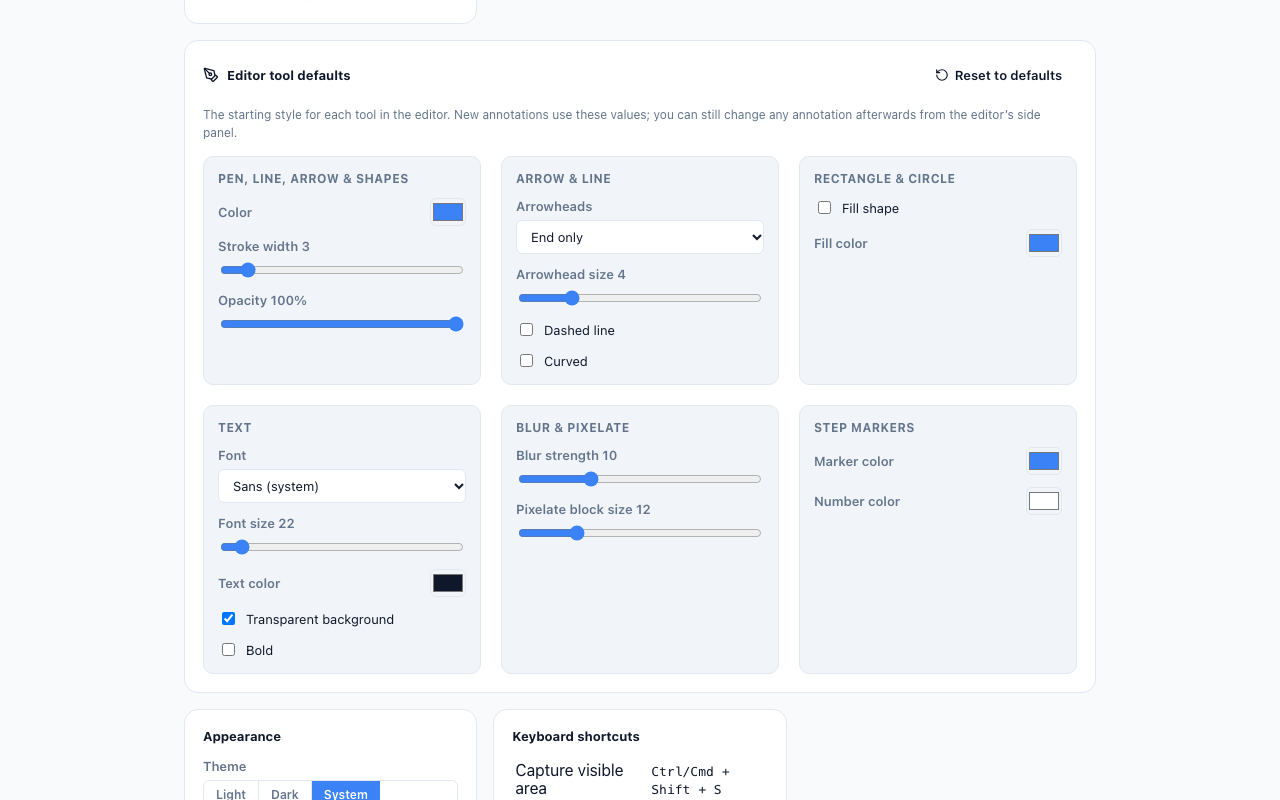
Pen, arrows, shapes, text, step markers, blur and pixelate. Set your own default colors and sizes in Settings.
Save as PNG, JPG, WebP, or PDF, or copy to the clipboard. Downloads straight to your device.
Every capture is processed locally. No servers, no uploads, no analytics — ever.
Capture without touching the mouse. Every mode has a shortcut you can customize.
A clean interface that follows your system theme, or switch it manually anytime.
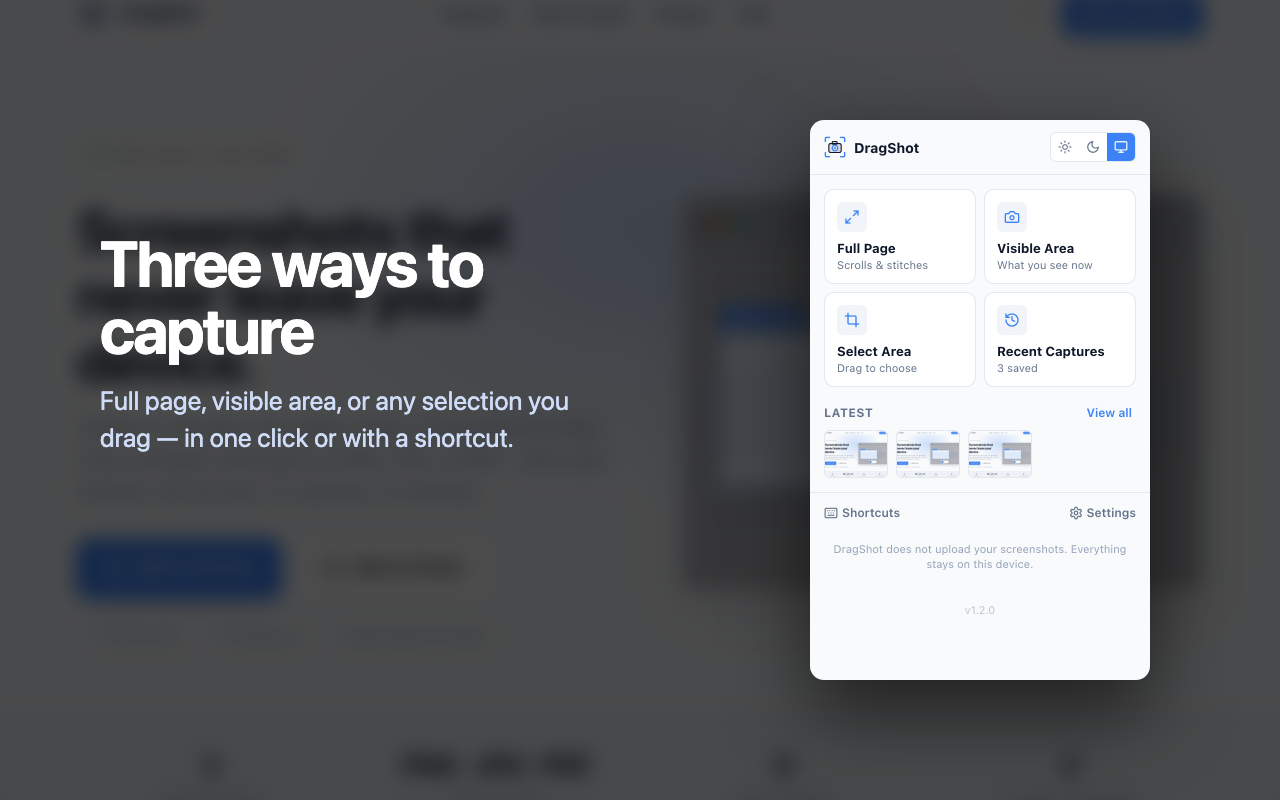
Quickly re-open or re-export your latest shots right from the popup.
A focused editor, a tiny popup, and settings that put you in control.
From page to polished screenshot in seconds.
Open DragShot from the toolbar or hit a shortcut. Pick visible, full-page, or select-area.
On Mac, use ⌘ instead of Ctrl.
The editor opens instantly. Trim the edges, then mark it up with arrows, shapes, lines, and text.
Download as PNG, JPG, WebP, or PDF. It saves straight to your device — nothing is uploaded anywhere.
DragShot does its work entirely inside your browser. There are no accounts, no cloud, no analytics, and no third-party trackers. Nothing you capture is ever sent to a server - because there is no server.
activeTab
Read the current tab only when you ask it to capture.
scripting
Inject the capture & selection tools into the page.
storage
Remember your settings and recent captures - locally.
downloads
Save the finished image to your device.
offscreen
A hidden page with a canvas, used to stitch and crop images locally.
alarms
Keeps the background worker alive only while a capture is running.
Yes. Every feature - all three capture modes, the editor, and PNG/JPG/WebP/PDF export — is free to use.
No. DragShot has no servers and no analytics. Your captures, settings, and history stay on your device. Nothing is uploaded or tracked.
DragShot is available for Google Chrome, Microsoft Edge, and Mozilla Firefox. Grab it from the store for your browser above.
Yes, that's what full-page capture is for. DragShot scrolls the page and stitches it into a single image automatically.
Yes. Open DragShot Settings and use "Editor tool defaults" to set the starting color, stroke width, arrow head size, text font and size, blur strength and more for every tool.
Absolutely. Default shortcuts are Ctrl/⌘+Shift+S, +F, and +A, and you can remap them from your browser's extension shortcut settings (chrome://extensions/shortcuts, edge://extensions/shortcuts or about:addons).
Browsers block extensions from running on protected pages, like the store itself, internal settings pages, and new-tab pages. On regular websites, it works everywhere.
Last updated: October 12, 2026
DragShot (“the extension”) is a browser extension for Chrome, Microsoft Edge and Firefox, developed by Md Habibur Rahman. This policy explains what the extension does with your data. The short version: it collects nothing.
None. DragShot does not collect, record, transmit, sell, or share any personal data, browsing history, page content, or usage analytics. It has no accounts, no servers, no analytics and no third-party trackers, and it makes no network requests.
Screenshots are captured only when you click a capture action or use a keyboard shortcut. They are processed entirely on your device and are never uploaded anywhere. Captured images are stored locally in your browser profile (IndexedDB) so you can edit and re-export them, and you can delete them at any time from the extension’s popup.
Your preferences (default format, tool defaults, theme, filename template) and recent-capture metadata are saved with the browser’s local extension storage. This data stays on your device and is removed when you uninstall the extension.
DragShot requests only the permissions it needs: activeTab and scripting to capture the tab you are viewing when you ask it to; storage to keep your settings and recent captures locally; downloads to save exported files to your Downloads folder; offscreen to stitch and crop images with a hidden canvas page; and alarms to keep the background worker alive only while a capture is in progress.
No data is shared with any third party, because no data leaves your device.
The extension does not knowingly collect information from anyone, including children.
If this policy changes, the updated version will be posted on this page with a new “last updated” date.
Questions? Email [email protected].
Install DragShot for your browser - it's free, private, and ready to go.